
All users of SmarterWX Automate get access to the search map. The search map allows user to see all enquiries received by your organisation and the responses that have been sent out.
Making dig information available across the organisation in this way enables many new workflows: –
- If a member of the public calls council to ask about people digging up the road, a customer service representative can see which utilities have recently submitted a Before You Dig enquiry in the caller’s street.
- When a poorly repaired pavement is identified, any contractors who have enquired about digging in that area can be displayed.
- Capital works planning can look at the volume of work that has taken place in any road in assessing the asset condition.
- If a short-term asset repair is required, the utility can quickly check to see if any other utility is planning on working in the area in the coming days.
The search map is an intuitive user interface allowing any user to easily navigate to an area and view enquiries. The contact details of the enquirer are shown allowing the user to call or email the enquirer as required.
The Search Tool is the default home screen when you first log in to SmarterWX Automate.
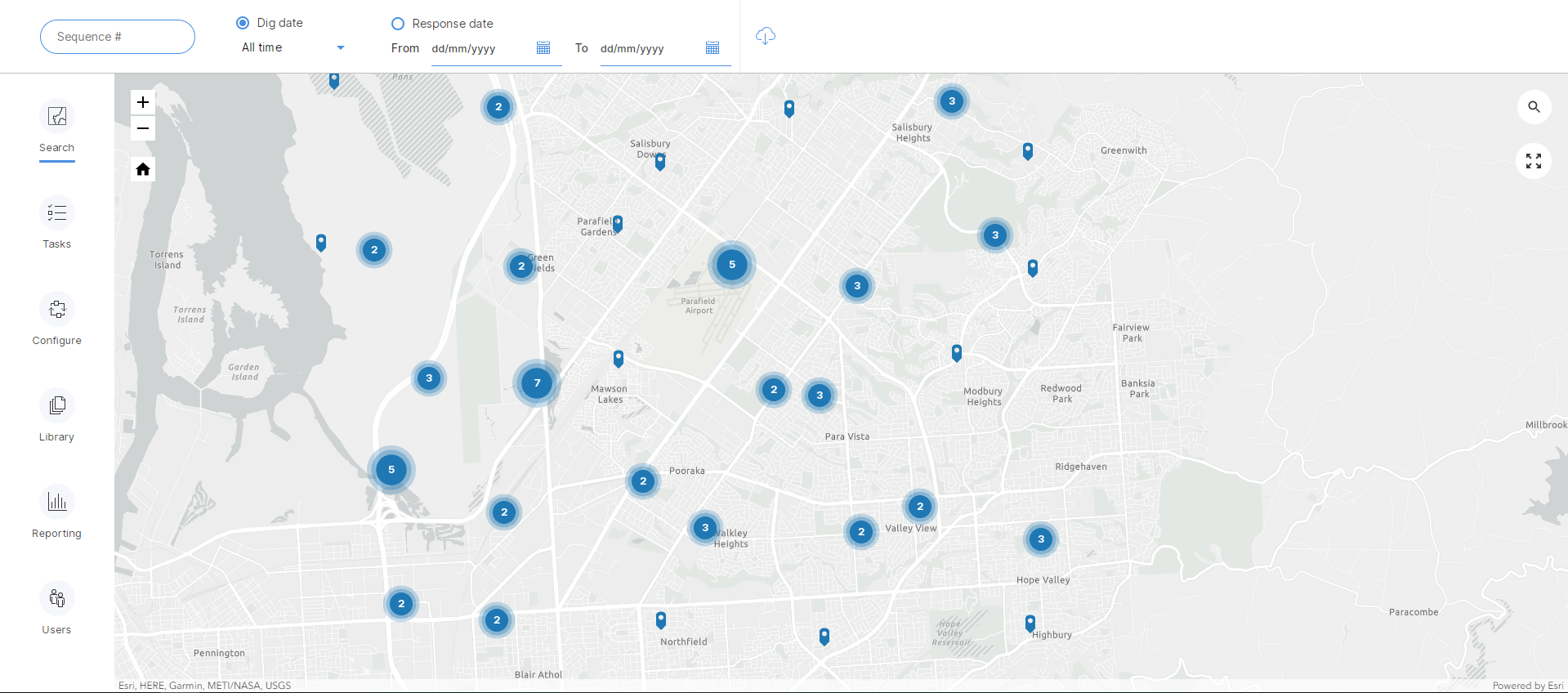
The search bar is located above the map and tools and allows users to search in one of 3 ways.
Search by Sequence number
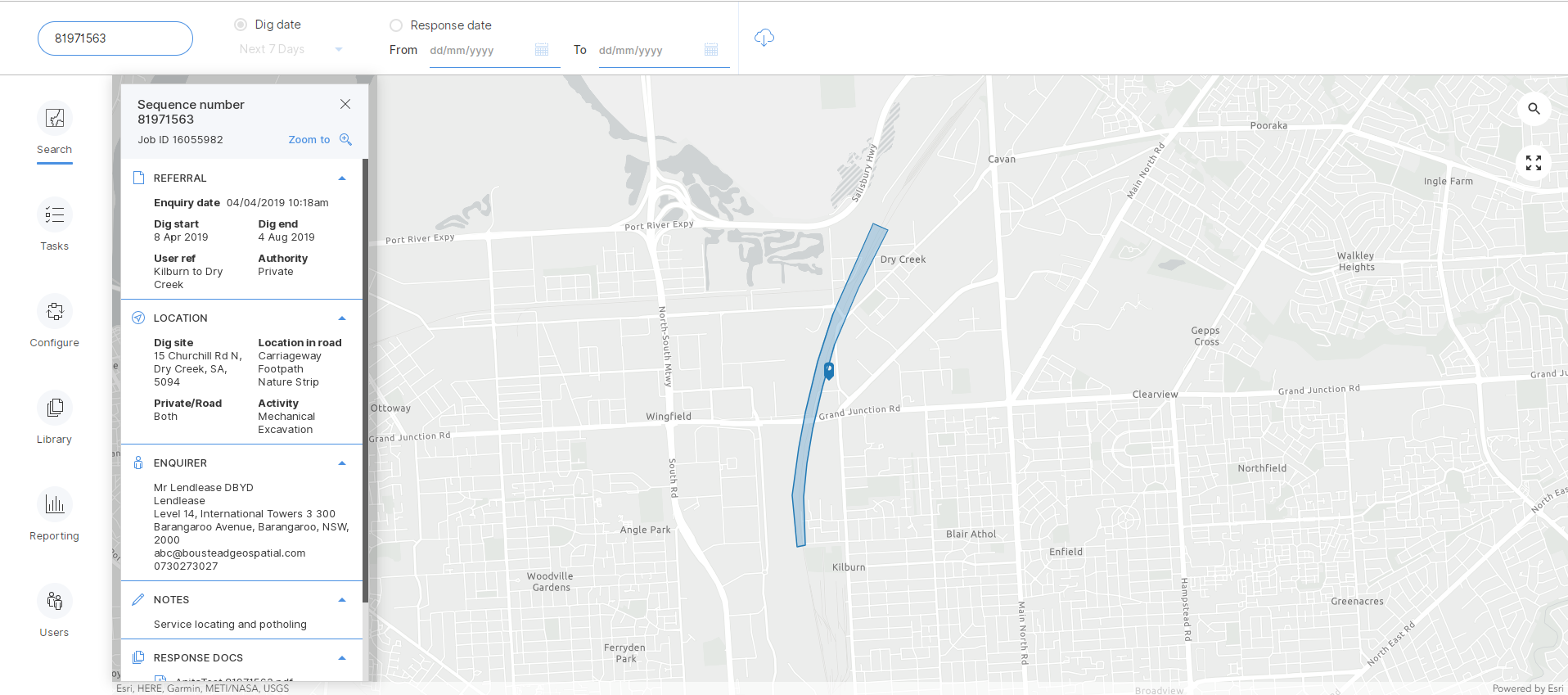
If the exact sequence number is known, by inputting it into the sequence search field, the map will automatically pan and zoom to the relevant area, and the referral information will be displayed.
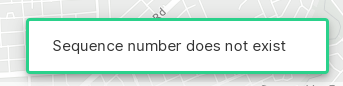
If the sequence number is not entered correctly or doesn’t exist within the organisations account this error message will appear at the bottom of the map.
Filter by Activity & Date
The two other ways of searching are by applying filters, and adjusting the parameters of the search, with the map updating to show only the relevant results.
The 2 filters that can be applied are:
- dates of the works (dig date) or
- date the referral was responded to

There are two date-related filters that can be applied.
For events that have occurred in the recent past, or are due to occur in the near future, results can be filtered by:
- Last 7 Days
- Last 30 Days
- Next 7 Days
- Next 30 Days
To not set by these filters, choose All Time.
If there is a specific period of time that the results need to be in, using the custom from – to fields are more useful.
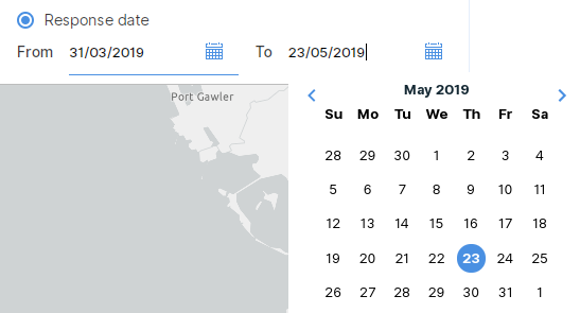
The search will update dynamically as you adjust these parameters. You can then use the map tools to zoom or locate a particular area.
Clicking on a pin will make the relevant referral information display.
Referral Information
The referral includes all relevant details regarding the Before You Dig query, as well as the information provided by SmarterWX Automate.
The referral information is made up of several sections:
General Referral Information
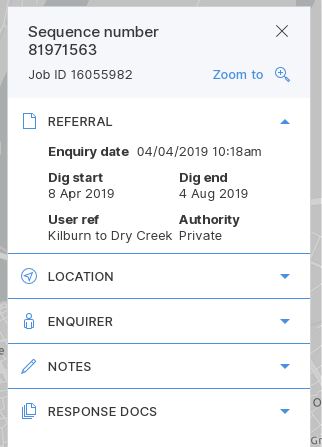
This includes the Seq Number, Job Number, The date of the enquiry and the start and end date.
Location
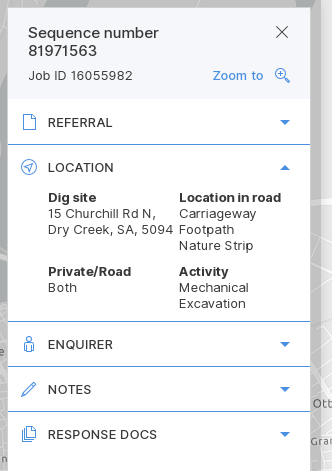
Location displays the address, the exact areas of the road affected, whether it is on private property or not, and the nature of the works, such as mechanical excavation.
Enquirer Information
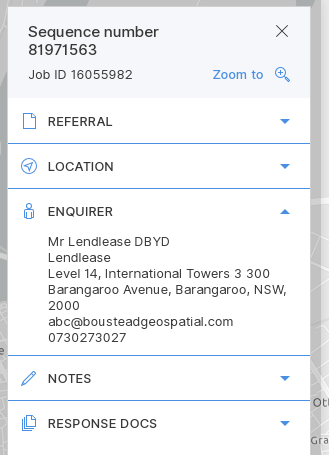
The Enquirer information displays the contact details for the enquirer, and may include their address, email and contact number, for if you need to make contact with them directly.
Notes
If there are any additional notes provided by the enquirer, they’ll also be viewable here.

Referral Docs
The final section includes all the documentation that has been generated by SmarterWX Automate. This may include cover letters, maps, excavation guides, or any other documentation that your organization has included in the documentation library as a resource.
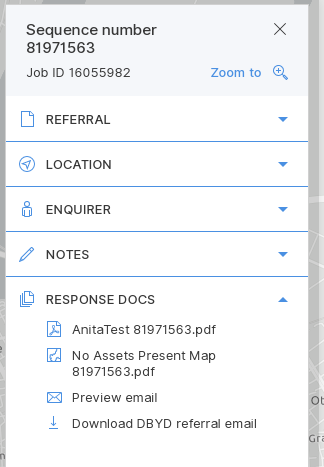
You can download these materials to view.