SmarterWX Automate home screen is made up of 3 main areas.

- Search and Filters
- Toolbar
- Map and List View.
By default, the search tool is active at the top of the screen when first logging into SmarterWX Automate.
The toolbar on the left-hand side, will show all the tools that your user type has access to. These tools will depend on whether you are a User or Reviewer, a Publisher, or an Administrator.
The map displays a predetermined area set by your administrator and should include the total area of your organizations area of responsibility.
To maneuver around the map, you can either zoom in and out using the zoom tools or scrolling the mouse wheel and pan around by click & dragging the mouse. To return to the default layout, click on the home button.
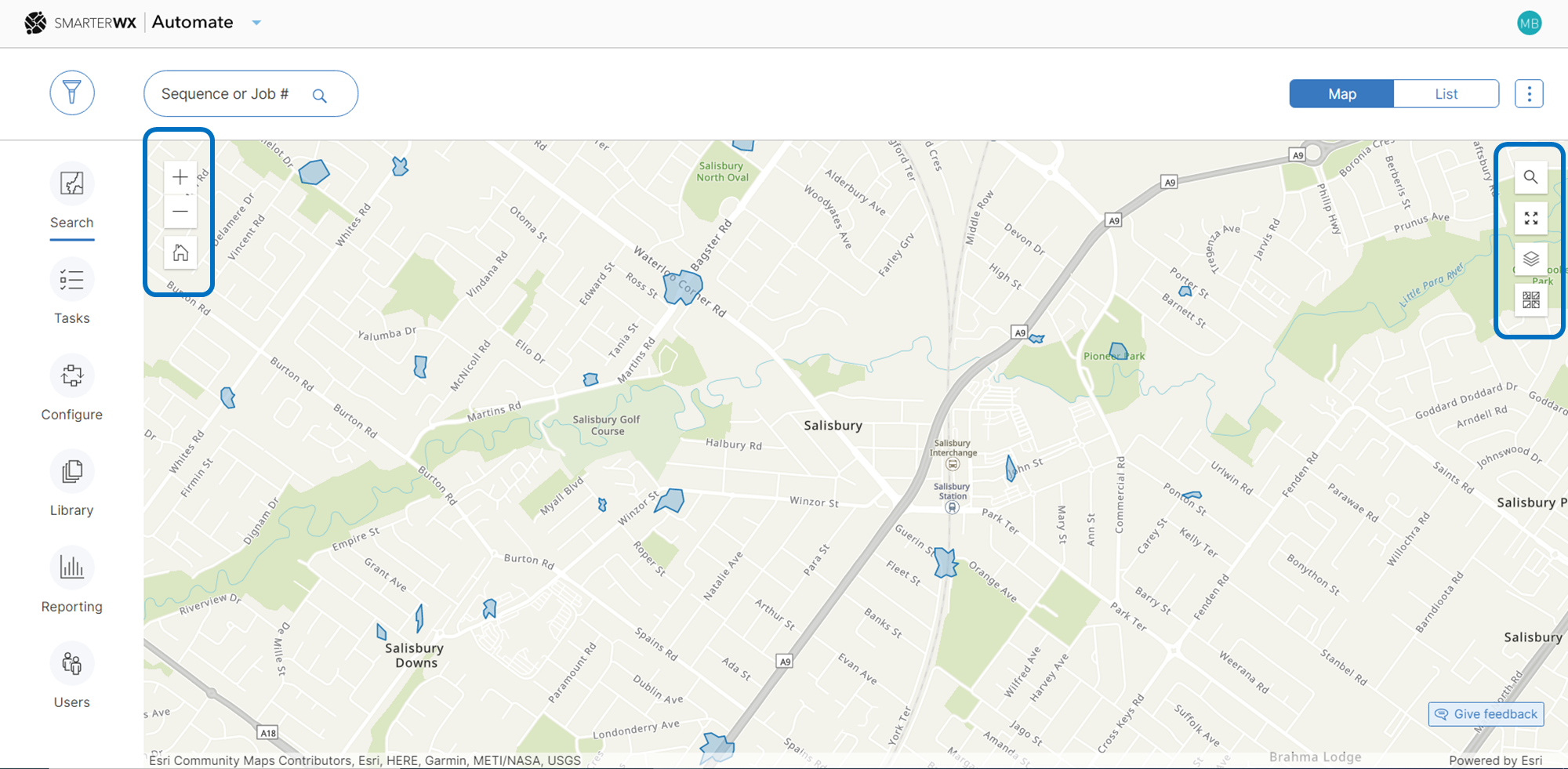
You can additionally search for an address, and if it is within the map set by your organization, it will pan and zoom to that location.

To increase the map size, you can choose to enlarge the map to full screen.
To return, minimize by clicking this button.

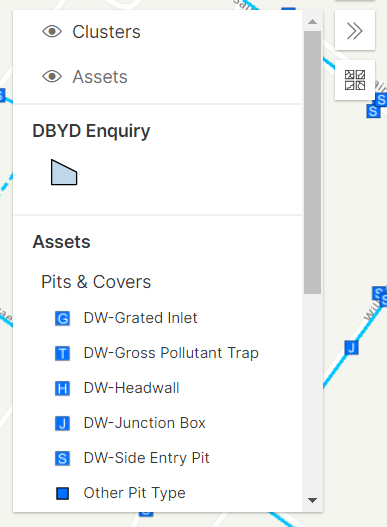
To toggle clusters and layers, you can choose to view asset details.

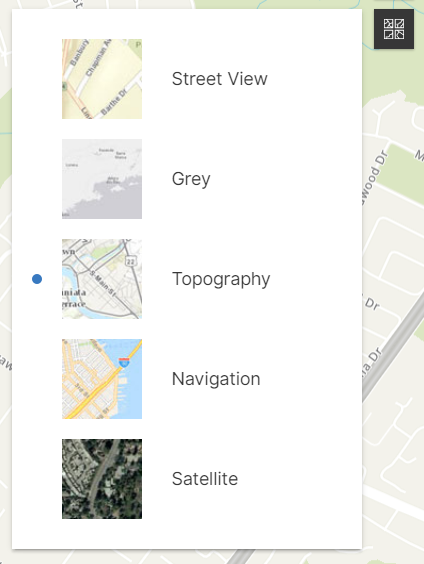
To change the map view, you can choose a different basemap.