
There are 3 main user types within SmarterWX Automate.
- Users
- Publishers
- Administrators
These roles have increasing levels of access and functionality, based on key workflows within your organization.
Users
Users have the access to:
- search the map and referrals
- view the tasks that have been allocated to them
They are unable to add or alter existing content within SmarterWX.
Those allocated to review referrals prior to sending to enquirers are designated as Users and are referred to Reviewers.
Publishers
As well as the functionality of a User, Publishers are able to:
- upload new documentation and data
- create and alter business rules
- generate and amend response email templates, and
- access the reporting tool
Administrators
Administrators have access to all tools and functionality within SmarterWX Automate.
This includes access to the User Management tool.
The User Management tool allows the administrator to:
- add new users
- modify their access privileges
- revoke access to SmarterWX Automate
Adding A New User
To add a new user, open the Manage Users tool.
On the bottom right side, click – Invite Users

Input the users email address, and assign them a role (their role can be updated and modified later if required).

You can add multiple users at a time, however for a large bulk import, you may contact your implementation or support consultants.
SmarterWX will perform some basic email verification testing, and alert you to any non-conforming emails used.
Once you’ve added the relevant users, again click on Invite Users
SmarterWX will alert you if any of the emails you’ve entered are a duplicate to any current account, you’ll need to remove them from the users to be invited by clicking on the remove button on the right of the user allocation section.
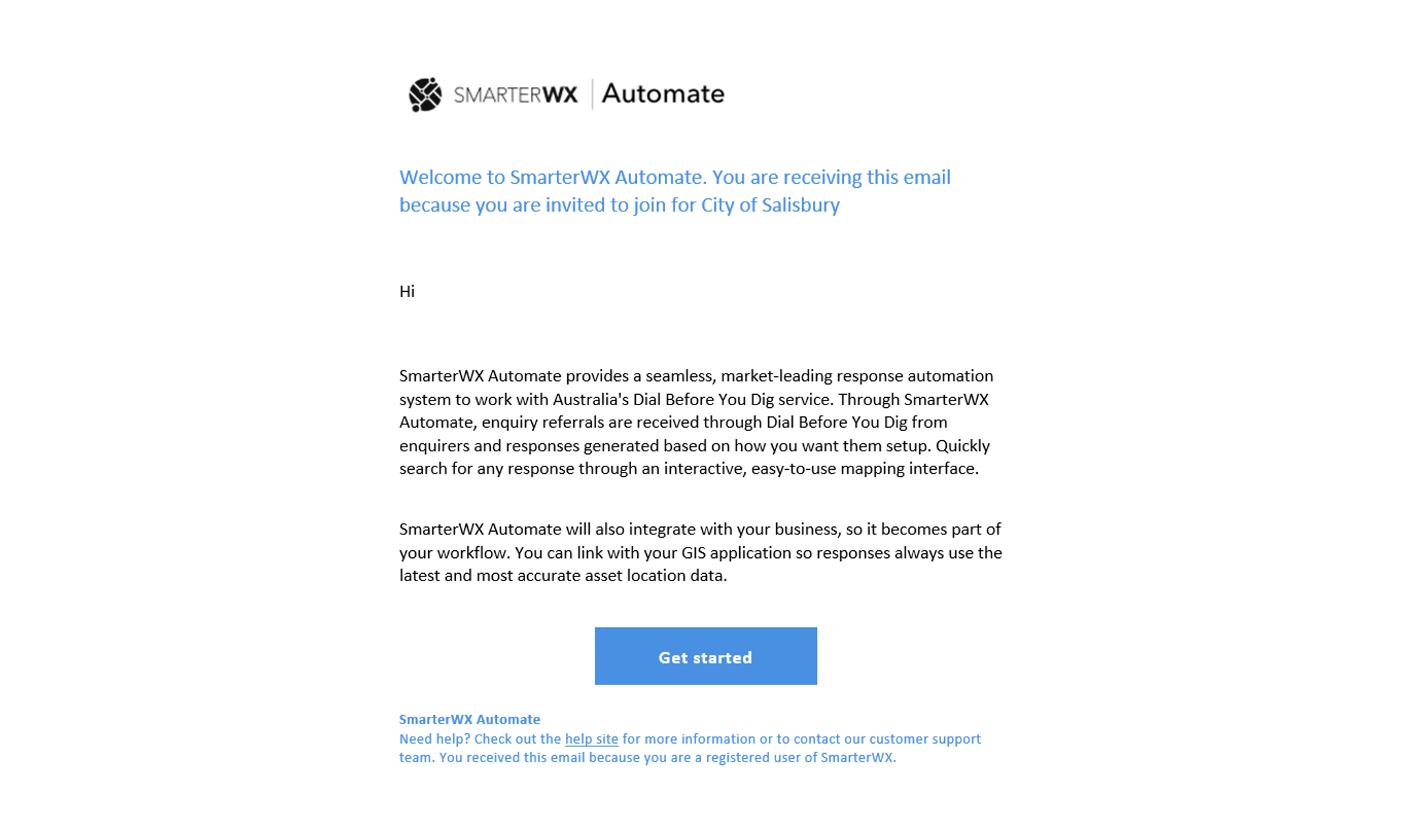
Users will then receive an email and be asked to set up/create their account.
Updating a User’s Role/Permissions
You can update a user’s permissions, which will take immediate effect*.
In the User Management Tool, search for or locate the user.
Selecting the user, an option will appear under the user list, allowing you to reassign the role type, or remove the user.

Selecting a new user type will automatically apply*, and the user’s permissions will be updated.
*If a user has an active session open, they may need to refresh/logout-login again to have the new user settings available.
To Remove a user will revoke their access to SmarterWX Automate.
The user isn’t notified, however if they were to attempt to log in again, they would receive an error stating
Incorrect email or password.
To align with auditing procedures, the user cannot be removed from the managed user list. Instead, (DELETED) will appear next to their name.

Note: Once deleted/removed from the system, they are unable to be added again to your organizations account. In this instance, please contact Esri Australia’s support team.
Bulk Update
It is possible to select multiple users at a time to perform the same action to. Select all the relevant users, and you’ll be able to remove all users or assign a role.
Organisation Set Up & Identity Integration (Single Sign On)
As part of the onboarding and implementation process, SmarterWX will assist in the basic set up of your organisations account.
Some of these settings will include global organisational settings, accessible in the User Management tool.

System Email
This is the email address that system and enterprise alerts will be sent to.
Default Map Extent
The default map is the area that is displayed when a user opens Automate. This area should include the whole area that is managed by your organisation, as users are unable to zoom out further than this set extent, and are unable to search for addresses that are outside the defined limits.

Identity Integration
SmarterWX Automate supports single-sign-on (SSO) functionality with existing credentials, such as Active Directory (ADFS).
If you are using SSO, users will automatically gain access to SmarterWX Automate based on the permissions granted within Active Directory. This allows for users to be given access based on their team roles without any further user management.

To set up or modify these settings, in User Management, select Organisation.
On this page you’ll be able to set up enterprise single sign on – including mass account user allocation, by mapping groups against the 3 user types.
You can also choose to allow individuals to self-sign up provided they are a part of the enterprise.
For more information about this, discuss with your implementation consultant.