
Watch areas allow you to monitor excavation activity within your personal areas of interest. You might want to be notified whenever a dig enquiry is received in an area where you have works planned or when the dig enquiry is close to critical infrastructure.
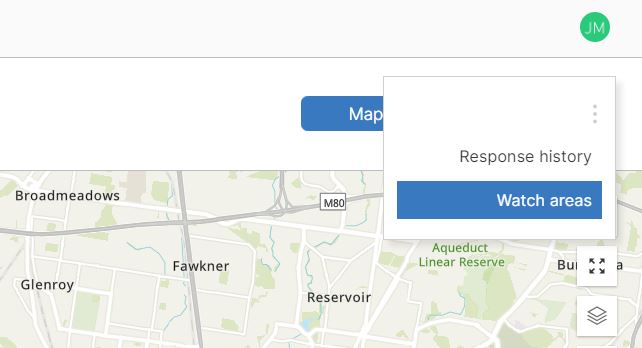
The “Watch areas” feature is accessed from the main search page in SmarterWX Automate. Start by clicking on the overflow menu to the right of the Map and List View controls and choose the “Watch areas” menu item.
When you enter watch areas mode, the map will change to show any existing watch areas you have defined. Clicking on a watch area will zoom in and allow you to edit or remove the area.
Creating a new watch area
To add a watch area, click on one of the drawing tools – line, polygon, rectangle or circle.

To draw a line or a polygon click on the map at each point around the shape. Double-click your final point to finish drawing. To draw a circle click once for the centre of the circle and then again once you’re happy with the size of the circle. To draw a rectangle click the opposite corners of the shape.
Note: When using the line drawing tool, SmarterWX Automate will add a small buffer around the line to indicate the area that will be used for matching against new enquiries.
When you finish drawing the watch area shape you will be asked to enter a name for the watch area. Give a name and hit “OK” to save your watch area. Watch areas take effect immediately for any incoming enquiries.
Selecting a watch area
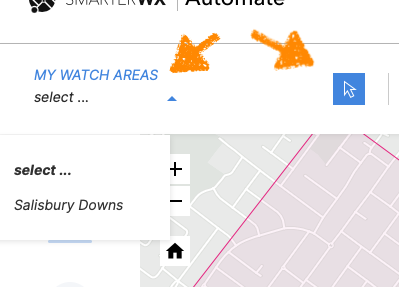
Once you have drawn your watch areas you can select them to edit or delete. To select a watch area either choose from the “MY WATCH AREAS” menu or choose the select tool and click on the map.
Removing a watch area
Click on the watch area you wish to remove. The watch area will be highlighted. Click on the trash can to remove it.
Editing a watch area
Click on the watch area you wish to edit. The watch area will be highlighted. Drag any of the handles around the shape to resize, rotate or move the watch area. Click on the save icon to finish.
The watch areas feature was first included in SmarterWX Automate in July 2019.