
SmarterWX Automate can be configured to query your GIS web services to generate Before You Dig responses in real-time. This ensures your GIS remains the source of truth, and we retrieve only what’s needed for each response.
Web services integration
Your map data can be configured to use Live Layers. Map layers can be pointed to an ArcGIS Feature Service, ArcGIS Map Service, Web Feature Service (WFS) or Web Map Service (WMS) to generate responses.
ArcGIS Feature Service
To setup ArcGIS Server or ArcGIS Online hosted data:
- Create an ArcGIS Server connection file. Make sure the Save Username / Password to connection file option is selected.

- Add the feature layers into the Assets group.
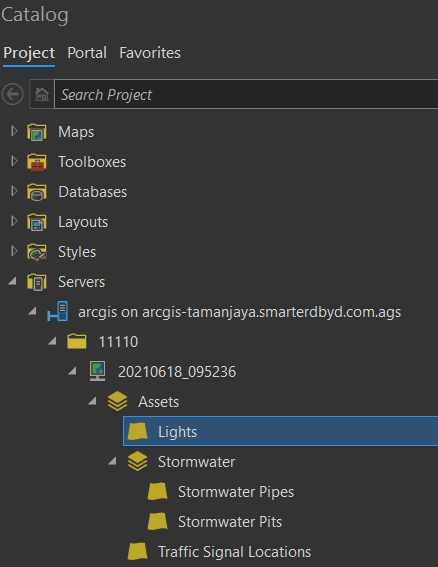
- Update the legend in the MapIndex and MapSeries layouts.
- To package the map for upload to Automate, make sure the ArcGIS Server connection file (.ags ) is included in the zip file.

ArcGIS Map Service
This option is for customers who would like to use Map Service to render complex symbology and annotations.
- Create an ArcGIS Server connection file. Make sure the Save Username / Password to connection file option is selected.
- Add the feature layers into the Assets group.
- Add the Map Service to a new group called Web Map.
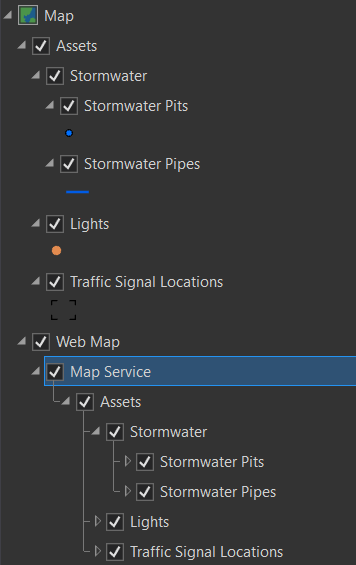
- Update the legend in the MapIndex and MapSeries layouts.
- To package the map for upload to Automate, make sure the ArcGIS Server connection file (.ags ) is included in the zip file.
Web Feature Service (WFS)
To set up Web Feature Service (WFS) hosted data:
- Create a WFS connection file. Make sure the Save Username / Password to connection file option is selected.
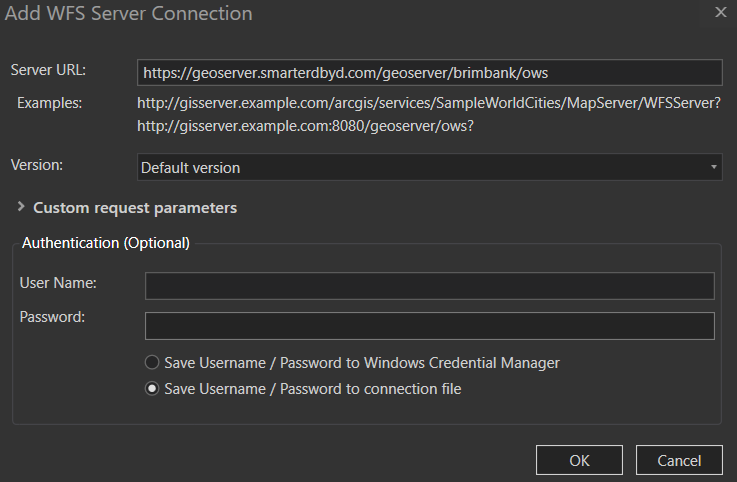
- Add the WFS layers into the Assets group.
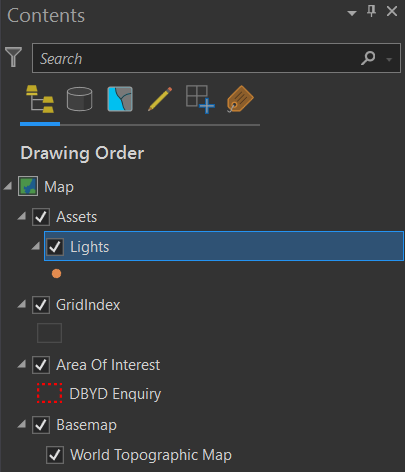
- Update the legend in the MapIndex and MapSeries layouts.
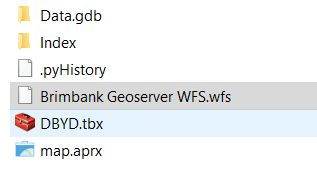
- To package the map for upload to SmarterWX Automate, make sure the WFS connection file (.wfs) is included in the zip file.
Web Map Service (WMS)
This option is for customers who would like to use WMS to render complex symbology and annotations.
- Create a WFS connection file. Make sure the Save Username / Password to connection file option is selected.
- Add the WFS layers into the Assets group.
- Create a WMS connection file. Make sure the Save Username / Password to connection file option is selected.
- Add the WMS layer to a new group called Web Map.
- Update the legend in the MapIndex and MapSeries layouts. Make sure the WMS layers appear in the legend.
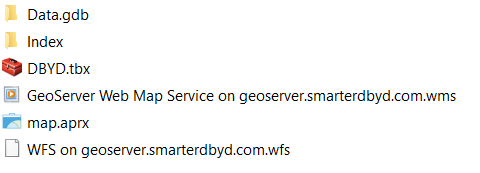
- To package the map for upload to Automate, make sure the WFS and WMS connection files are included in the zip file.
Our support team can assist you in configuring this option during your implementation, or at any time if you wish to change an existing setup.
Error handling
If SmarterWX Automate is unable to reach your web services to generate a response, a notification email will be sent to your organisation’s system alerts email to inform you of a response generation failure case.
The system will retry over the next 30 minutes to complete the response. If further attempts are unsuccessful, referral processing may be paused. An email notification will be sent requesting you to review your GIS services.
If your referral queue has been paused, you can restart it once your GIS services are restored. Simply login to SmarterWX Automate, and go to Settings > System Settings > System pause to unpause the queue.
Other considerations
Please take note of the following when considering Live Layers as an alternative to hosting your asset data in the SmarterWX cloud.
- Live Layers introduces a dependency on your GIS services as compared to the no dependency SmarterWX cloud model. Any GIS outages will impact your Before You Dig response generation.
- Some product options are not enabled by default for this map configuration, including Asset data in the search map and Digital sharing options – please contact our support team to enable these features.