
Before configuring Single Sign-On within SmarterWX Locate you must first setup an Enterprise in SmarterWX Identity. Please refer to the separate SmarterWX Identity help guide for details.
The email domain configured in SmarterWX Identity Enterprise Manager is used solely for authentication and login routing purposes. Specifically, it determines whether users with matching email addresses should be authenticated via your organisation’s Single Sign-On (SSO/SAML) identity provider or via local username/password.
When adding a new email domain, SmarterWX requires verification of domain ownership by adding a TXT verification record to your DNS. Once the domain has been successfully verified in SmarterWX, the TXT record can be safely removed from your DNS configuration.
How does Single Sign-On work?
Single Sign-On allows you to manage users and user permissions within your own third-party identity provider such as Active Directory Federation Server (ADFS).
Users who have been authenticated through Active Directory can automatically join your SmarterWX Locate organisation with no requirement for the administrator to make any changes. Similarly, the users are automatically assigned to the appropriate role based on their Active Directory role membership.
To access settings for Single Sign-On start by clicking on the avatar in the top-right corner and selecting “Organisation” .
Allowing SSO users to join your organisation
The first step is to allow any users who belong to your SmarterWX Identity Enterprise to login to your SmarterWX Locate organisation. Do this by checking the “Allow” box.
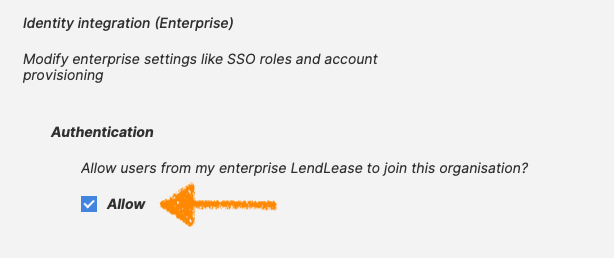
At this stage any SSO user can login to your organisation and will inherit the basic user role. You can modify roles through SmarterWX Locate user management.
To set-up automatic role permissions read on.
Setting up group-role mapping
Group-role mapping allows you to set a user’s permissions in SmarterWX Locate from your Active Directory (or other SSO directory). It follows the standard single sign-on pattern of matching groups that a user belongs to in Active Directory to role types in SmarterWX Locate.
Within the organisation settings, configure mappings of roles based on the group names you choose. In the text box enter the name of an AD group that you want to map to a user role.
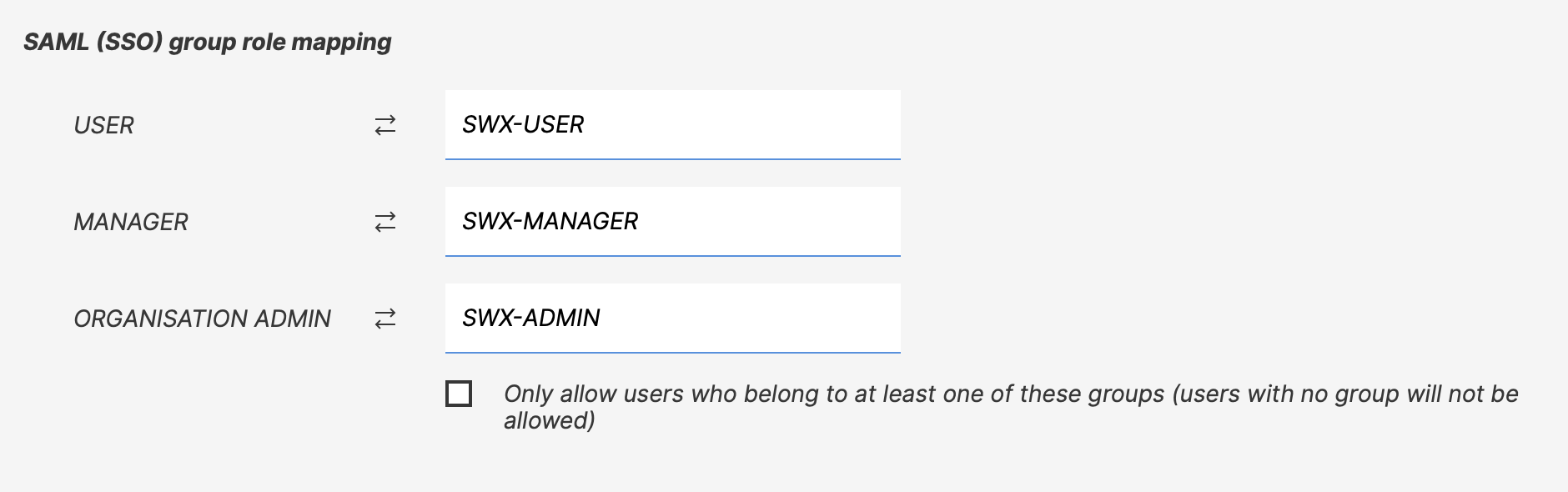
If the user belongs to multiple roles (for example, SWX-MANAGER and SWX-USER) in the above example, they will be granted the highest permission that they match with. In this example that would match to the manager role.
By default any user from your identity provider can login to SmarterWX Locate and will be given the user role if they do not match to any of the groups. By checking the Only allow users … checkbox it limits users to only those that belong to one of the listed groups. Users who do not belong to any group will be denied access.