
SmarterWX Locate allows you to submit your Before You Dig enquiries directly from within the application without having to login to or use the 1100.com.au website. In fact, you don’t even need to have a login for 1100. This is an optional feature in SmarterWX Locate and must be activated before you can use it. Please contact the SmarterWX Customer Support Team for more information.
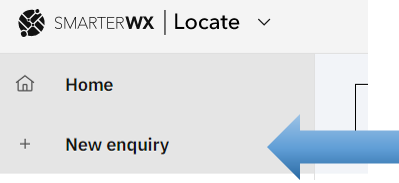
The easiest way to tell if the Create Enquiry feature is activated in your SmarterWX Locate account, is to click on the “+New enquiry” left-hand menu item. If activated, you will be taken to create enquiry mode.
Creating Enquiries
To create an enquiry in SmarterWX Locate, start by hitting the “+ New enquiry” button in the left-hand menu. SmarterWX Locate will now switch into create enquiry mode. The basemap may change depending on the settings for your default team.
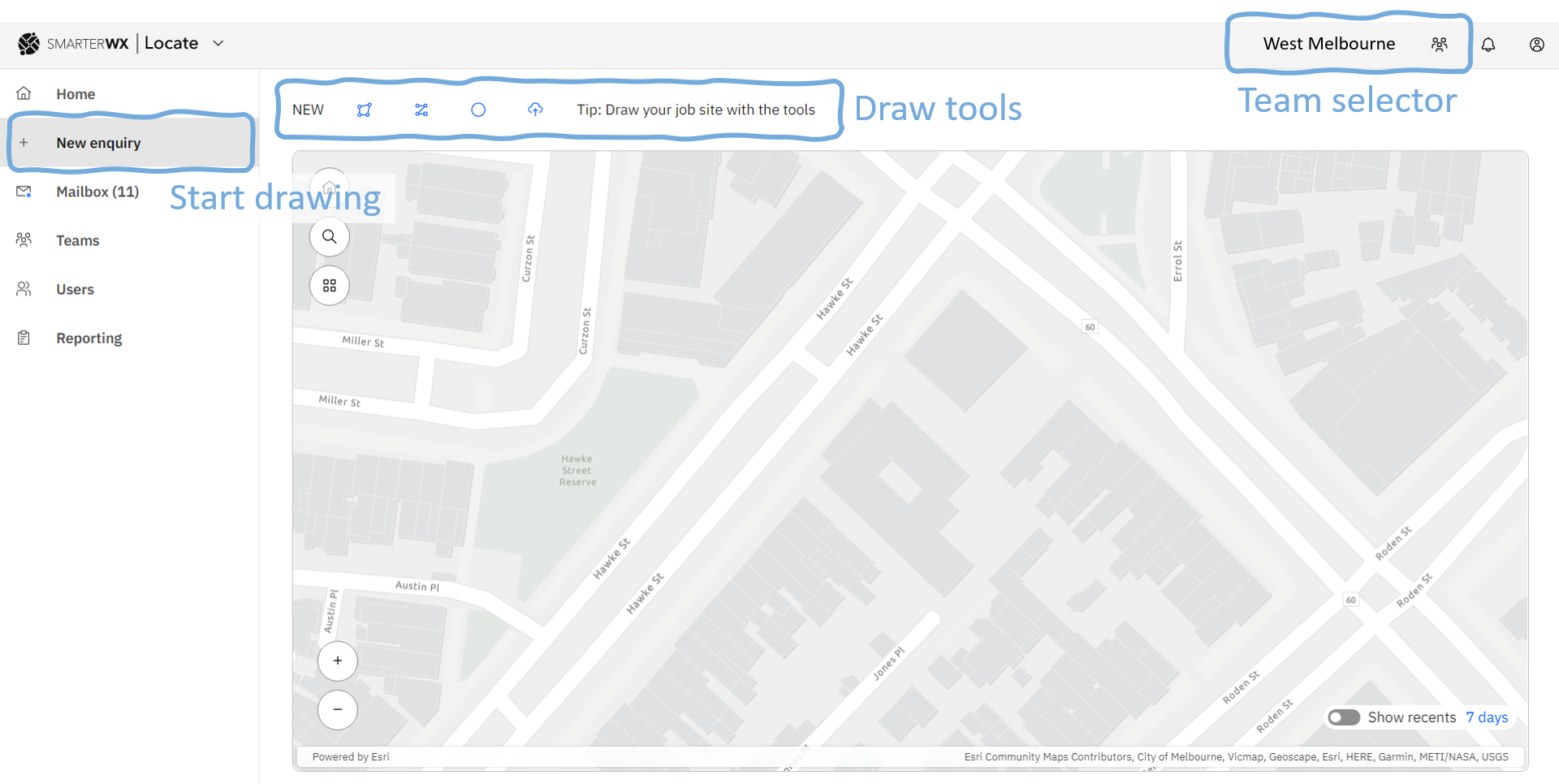
The map will now include additional tools as shown above – the Team Selector and draw tools for drawing your enquiry area.
Use the team selector to choose which team you are working on. It will start by showing your default team. The selected team will adjust three things: –
- The base map will change to the chosen base map for the team. Depending on how it is setup this may display additional team features to help orientate you in the construction zone.
- The currently displayed map extent will change to the region for the team.
- The defaults used when filling in the new enquiry form will be set to those matching the team.
Pan and zoom the map (or use the location search box) to position yourself where you want to draw your enquiry dig site.
Next, choose your preferred drawing tools. You can choose the “Polygon drawing tool” to draw a shape, or if you wish to draw your dig site using the line or circle tool, simple click on the buttons available above the map.
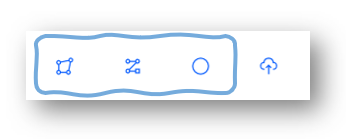
When using the polygon or line tool, click on each vertex of your shape and then double-click to close the shape. Once the shape is drawn, choose from the options “Redraw” or start completing the enquiry information.
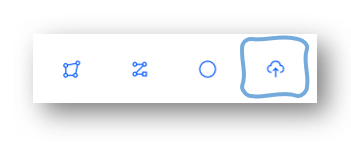
If you have a shape file available, you can also choose the “Upload tool” and then browse to the file on your network and select it. This will load it into SmarterWX Locate. The shape will be positioned on the map.
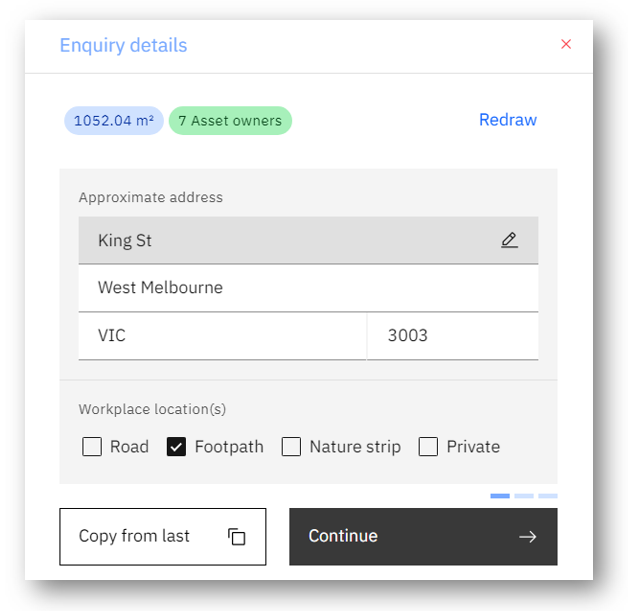
After defining your enquiry area, the enquiry information is displayed. You can also confirm the enquiry area size, and number of asset owners. The enquiry form is broken across three form parts for easy completion.
Form part 1
- To speed up form completion, you may choose to “Copy from last job” to use the same form responses again for this enquiry.
- The address will have been filled in automatically based on your dig site. Adjust the approximate address if required to be more accurate.
- Confirm your workplace location. The choices available are any combination of Road, Footpath, Nature strip and Private.
- Click “Continue” to move to the next form part.
Form part 2
- The Job Start Date and Job End Date fields are mandatory. They follow the Before You Dig rules with start date at least two days ahead.
- Confirm your enquiry type. Choose Design or Excavation. Then choose an option, e.g. Planning & Design.
- Click “Continue” to move to the next form part.
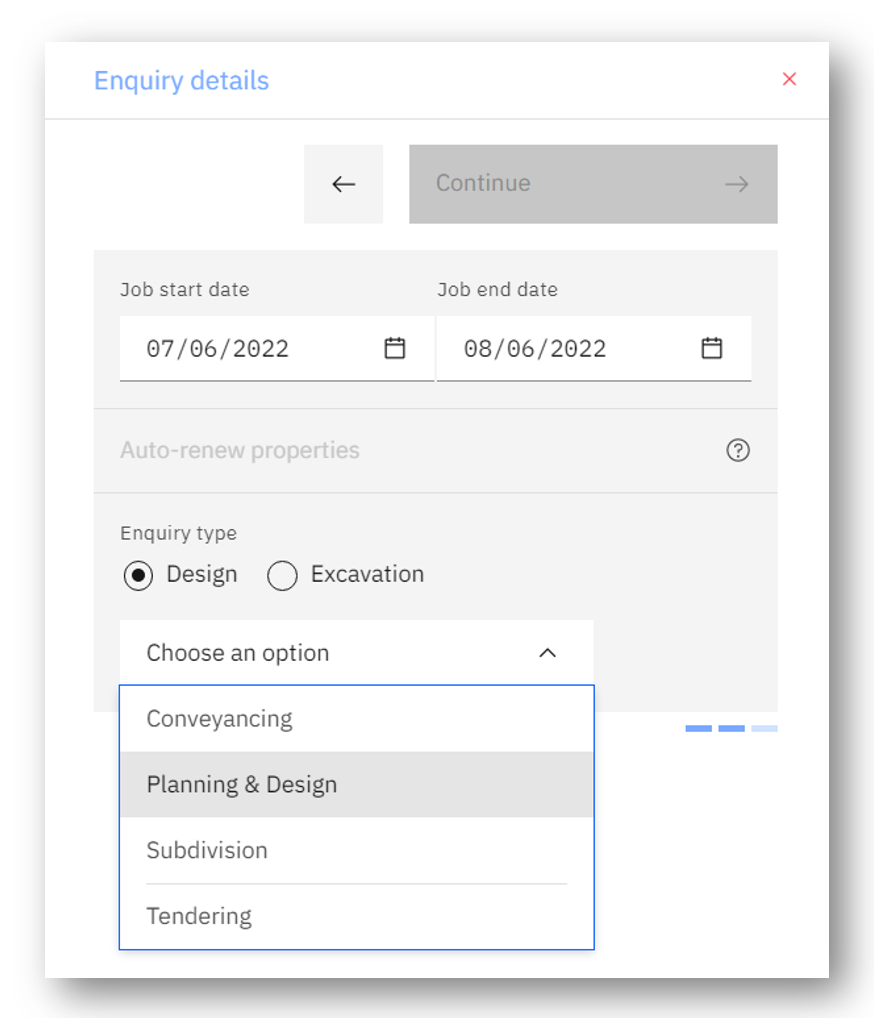
If your excavation work is going to continue for more than a month, you might choose to use the “Auto-renew properties” option. You must select the number of days before your enquiry expires that the auto-renew should occur (default 3 days) and the date at which to stop automatically re-submitting this enquiry.
Form part 3
- Provide a reference for your enquiry. This will be used as the User Reference to help you identify your Before You Dig enquiry.
- Provide any Notes that may help the asset owners understand your request. This is optional. Note this will be pre-populated with the user’s contact details, to help asset owners reach you.
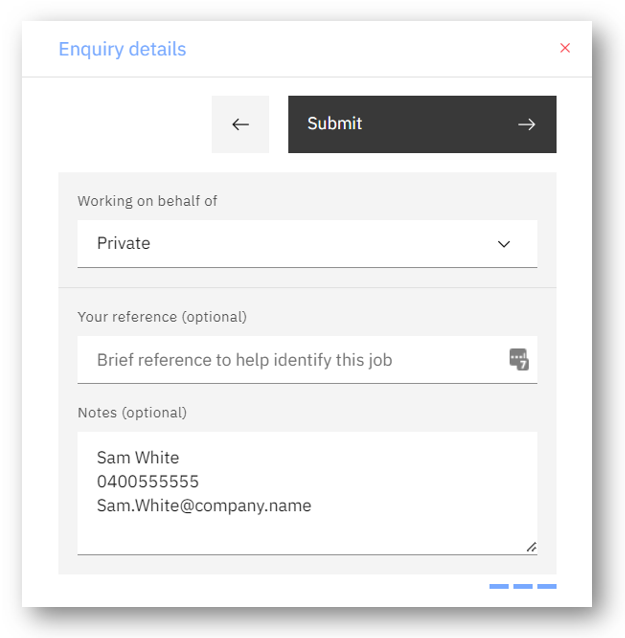
Note if your selected team has default values applied these will be populated. All fields are mandatory and can be edited if required.
Click “Submit”. Your enquiry will be created and you will be taken to the enquiry details page.
(Note that it takes about 1-2 minutes for Before You Dig to return the information necessary to populate your enquiry details with the waiting referral responses.)