
This feature is available to users in the Administrator role only.
As an administrator you are responsible for adding and removing users from SmarterWX Locate and setting users access rights. There are two types of users within SmarterWX Locate: –
- Organisation Users – An organisation user is a member of your company or agency. They can see a list of teams. They can be made into team manager or even an administrator.
- External Users – An external user does not belong to the organisation but has been invited to participate in one or more teams by the team owner. An example might be someone who belongs to a joint venture company or a sub-contractor. They only have access to the team they have been invited to be a part of.
In this article we’ll look at Organisation Users. For External Users, check out the Managing Teams help guide.
User Roles
There are three role types in SmarterWX Locate: –
- User – This is the general class of users. They can search for and view enquiries, create new enquiries, and so on.
- Team Manager – The team manager is also able to create new teams and modify teams that they own.
- Administrator – The administrators are the power users for your organisation. They can do everything including managing users and running management reports.
A note on Single Sign-On
If you are using Single Sign-On, users are automatically created and assigned roles based on their group permissions. You can still view user details in SmarterWX Locate and temporarily elevate a user’s role, but they will always reset the next time they login.
Adding a New User
To add a new user, first go to the user management section by choosing “Users” in the left hand menu bar.
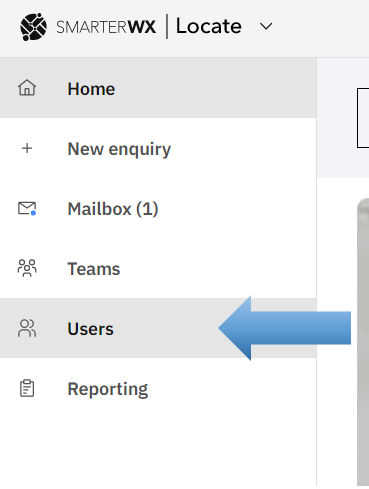
Now follow these steps to add new users: –
- Click on “Invite Users“.
- Enter the email address of the user.
- Assign a role for this user.
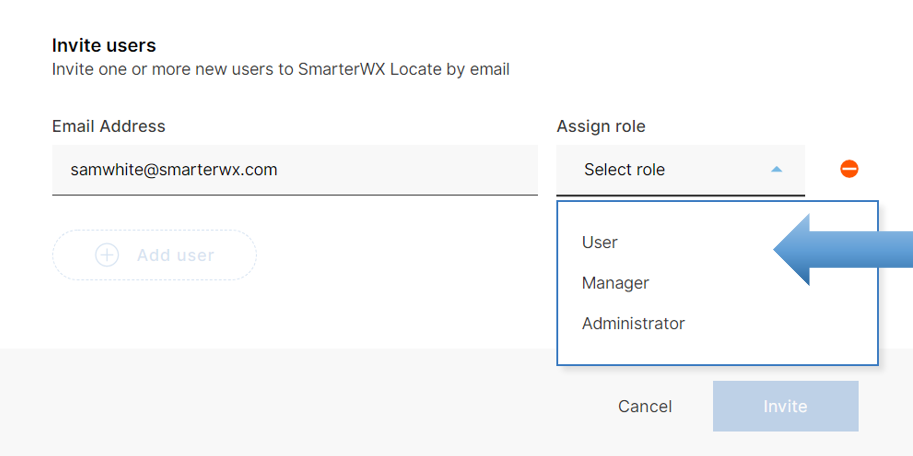
- You can keep adding users by clicking on the “+ Add user” button.
- When you have finished adding users, click on “Invite users”.
- Each user will receive an email invitation asking them to register and sign-in.
Re-issuing an email invitation
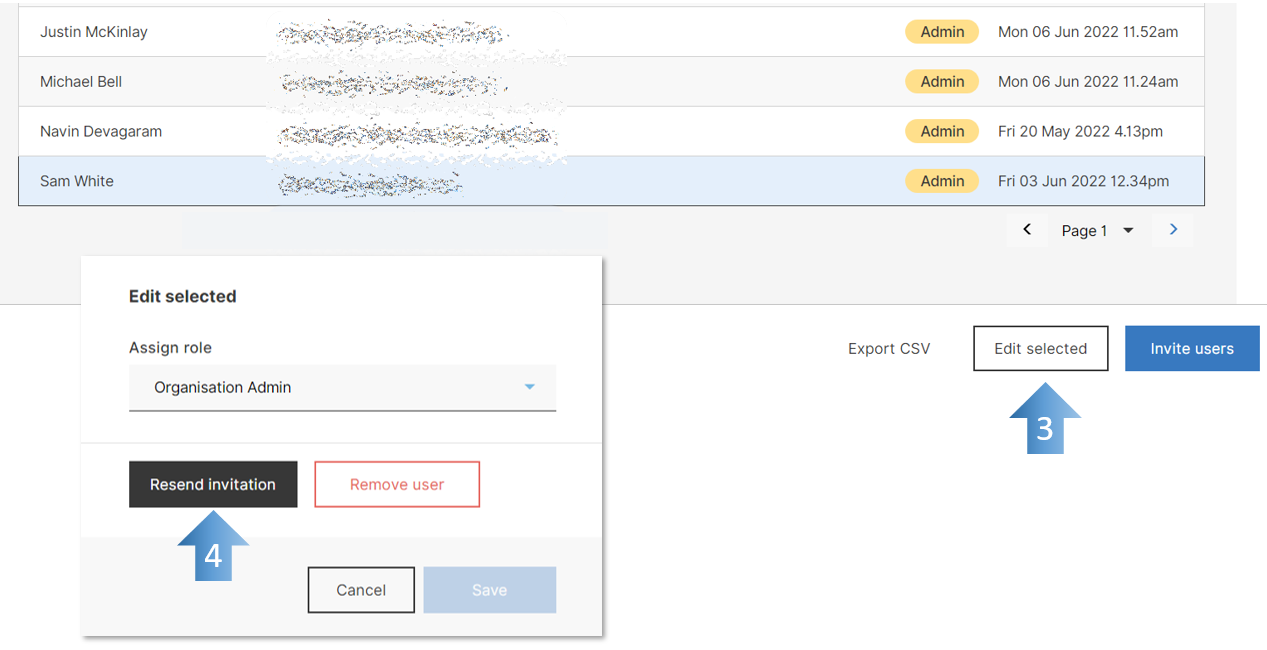
A user has 3 days to click on the “Activate now” button in their email invitation. For security reasons, the invitation expires if it is not clicked on within 3 days. You are able to re-issue an invitation.
- Type part of the user’s email address in the “search” box.
- Click on the user in the users list.
- Click on the “Edit selected” button.
- Click on the “Resend invitation email” button.
Changing a user’s role
You can change a user’s role at any time. To take effect the user will have to either refresh their browser or logout and back in again.
- Type part of the user’s email address in the “search” box.
- Click on the user in the users list.
- Click on the “Edit selected” button.
- Change the user’s role in the “Assign role” drop-down.
Deleting a user
You can delete a user from SmarterWX Locate so that they are no longer able to login.
- Type part of the user’s email address in the “search” box.
- Click on the user in the users list.
- Click on the “Edit selected” button.
- Click on the “Remove user” button.