
The map search page is the entry point for SmarterWX Locate and allows you to find and view enquiries and responses.
Navigating the map
When looking at the map you see several things: –
- Shapes on the map representing your enquiry dig sites.
- A list view of the enquiries within the visible extent of the map.
- A collection of search filters to limit what is displayed.
- An address search tool to zoom the map to a particular location.
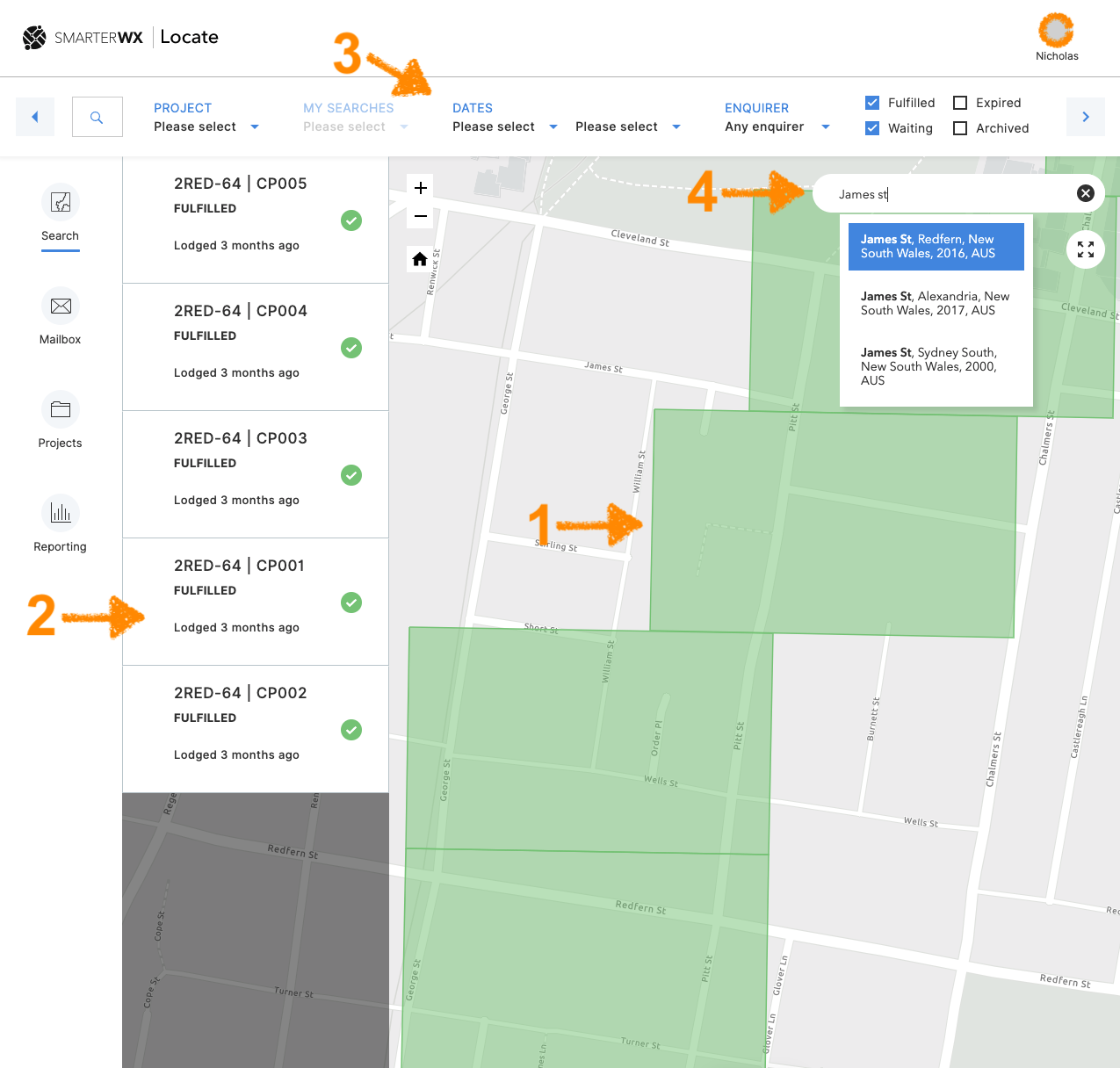
Clicking on a shape on the map or an item from the list view, selects the enquiry. Click on the “View Detail” button to open up an enquiry to see its full details.
Map symbology
To avoid cluttering the map with a lot of dig sites, the symbology changes as you zoom out to a broader view.

- Enquiries change from a polygon shape to a simple pin.
- Multiple enquiries show as a cluster symbol with a number indicating how many enquiries have been grouped together.
Clicking on either the pin or the cluster will zoom the map in to reveal more detail.
Using “Saved Searches”
A Saved Search is a collection of search filter settings and a map extent. You can use saved searches to quickly jump the map to a certain area and show only the enquiries relevant to your current task.
To add a saved search, first set your map extent to your area of interest and modify the search filters to match your requirements. Then scroll the search filter bar to the far right to reveal the “+ Save search” button.
- Click on “+ Save search“
- Enter a name for your saved search.
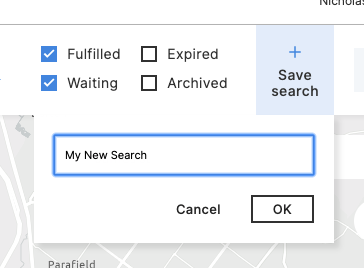
- Click “OK“
To use your saved searches, click on the “My Searches” drop down on the filter bar. Selecting one of your searches will update the search filters and zoom the map to your chosen extent.
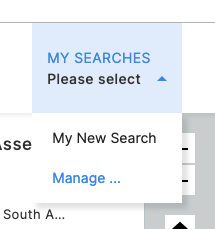
You can remove saved searches that you no longer need by clicking on the “Manage …” button.