
See Searching for enquiries in SmarterWX Locate to understand how to find and select enquiries.
Enquiry statuses
As enquiries get created, responses are returned and time passes, the status of each enquiry changes. In SmarterWX Locate an enquiry can be in one of three statuses: –
- Waiting – Indicates that one or more asset owner responses is outstanding. An enquiry starts in the waiting status and will remain in waiting until all asset owner responses are returned.
- All responses received – Indicates that all of the asset owner responses for this enquiry have now been returned.
- Expired – Information returned by asset owners for Before You Dig enquiries has a limited life. The assets in the ground change over time. The typical expiry time for a Before You Dig enquiry is 28-30 days. SmarterWX Locate will change the status of enquiries to expired after 28 days.
Viewing an enquiry
When you view an enquiry in SmarterWX Locate you will see something like this (may be slightly different depending on mobile vs desktop).
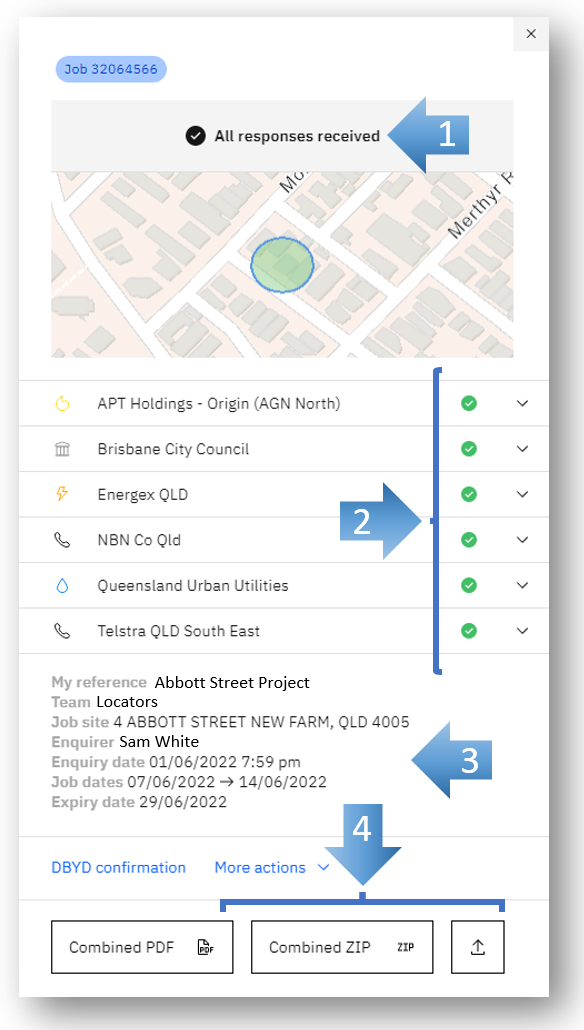
- The status of this enquiry
- The response status for each individual asset owner. (In this example all six of the responses have been received).
- The enquiry job details, including reference, which team the enquiry belongs to, the job site location, enquirer name, enquiry and job dates, and the date the enquiry is due to expire.
- Download and share options, including the Combined PDF or ZIP (generated on demand) and an enquiry permalink for external sharing (requires feature to be enabled).
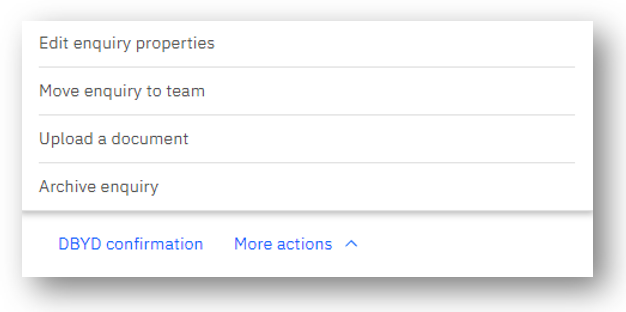
More actions
- “Edit enquiry properties” to change the user reference (note this will be internal to SmarterWX only) or revise the expiry date.
- “Move enquiry to team” to change which team the enquiry is matched with (note user must be an Admin, or own the enquiry).
- “Upload a document” to attach a general document to the enquiry (note this will be included in any combined download).
- “Archive enquiry” to remove or hide the enquiry from general view (note the enquiry can still be found via direct search).
Viewing an asset owner response
Clicking on any asset owner in the list of reveals more options, including contact details, and the option to view or download their response.
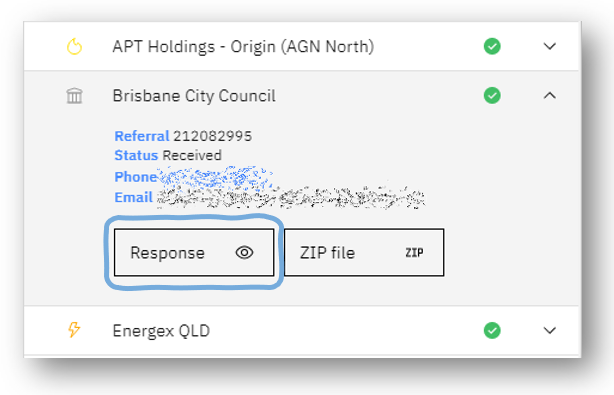
In the above example we are looking at the response returned by Brisbane City Council. Click the “Response” button to view the response details.
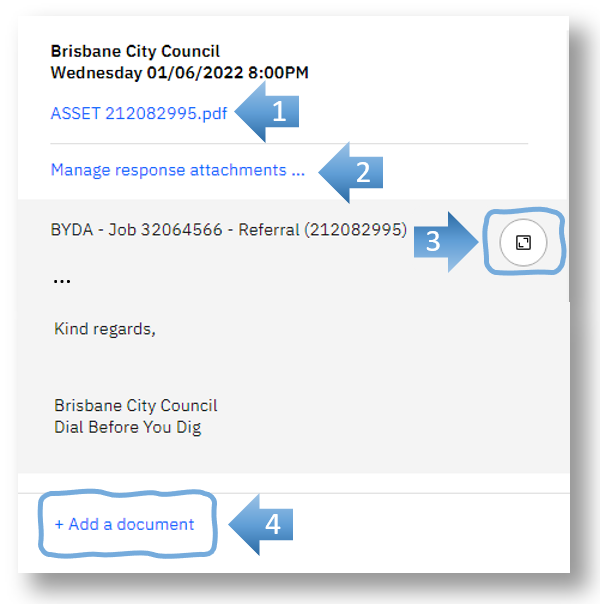
The top section shows the name of the asset owner (“Brisbane City Council”), the date and time when the response was received.
- The number of attachments that have been received, including the asset owner’s asset map (PDF).
- “Manage response attachments” to select which attachments to exclude from combined downloads.
- “Full screen response” to view the asset owner’s original response including original email presentation.
- “Add a document” to upload attachments against this asset owner (note these appear in the combined downloads).
Clicking on any of the attachments or the full screen option opens a viewer showing the file itself or original message contents.
Archiving enquiries
A user can choose to archive an enquiry. By changing an enquiry to archived, it hides it from view. Changing the search filters to include the archived status will show any archived enquiries. Note archiving an enquiry does not change the enquiry status.