
Note: Whilst all users can use teams, creating and managing teams is restricted to Manager and Administrator roles.
What is a team?
In SmarterWX Locate a team represents a collection of enquiries. By adding enquiries to a team, you share them with a group of users and make it easier to search and manage your responses.
If you have activated the “Create Enquiry” feature in SmarterWX Locate, teams also help to pre-populate the enquiry details based on defaults for each team.
How does an enquiry become part of a team?
An enquiry is connected to a team in one of three ways: –
- If the enquiry was created through the SmarterWX Locate “Create Enquiry” feature, it is linked to the team you had selected when filling in the enquiry details.
- If the enquiry was created in 1100, it will be linked to a team automatically if the enquiry’s geographic area is contained within exactly one team in your organisation.
- If the enquiry was created in 1100 and cannot be geographically linked to a single team, it will become part of the enquiring user’s default team.
- If you do not have a default team, the enquiry is not connected to any team and is private to the enquiring user.
You can remove an enquiry from a team making it private to the enquiring user by clicking on the “Remove from team” button on the enquiry details page.
Default team
As mentioned in (3) above, an enquiry created by 1100 will attach to your default team if it cannot match to the geographic extent of one of your teams. Your default team is the team you have most recently accessed in SmarterWX. To select a team, simply choose from the list in the global Team Selector in the top right of the user interface.
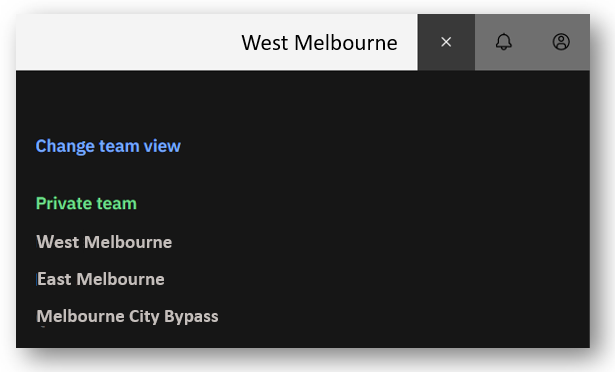
Team selector
A change to the default team takes effect immediately. You do not need to press save.
What is a “Private Enquiry”?
An enquiry that does not belong to any team is known as a private enquiry. Private enquiries can only be viewed by the enquiring user (and administrators).
Searching based on team
You can restrict your search to a particular team by choosing a team from the global Team Selector in the top right of the user interface.
Team Selector
Creating and managing teams
Creating and managing teams is restricted to Manager and Administrator roles.
Creating a new team
To create a team, select the Teams feature from the left-hand menu and then click on the “+ Create New Team” button. Follow the steps below: –
- Navigate the map to a view that contains your team’s geographic extent.
- Select the base map you wish to use for the team by clicking on the base map selector button. This is the map on which new enquiries will be drawn. If you are not using the “Create Enquiry” feature you do not need to select a base map.
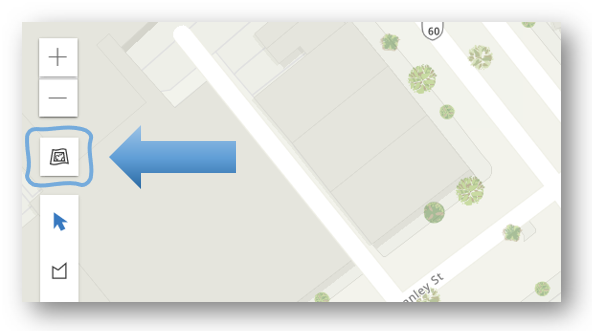
- You may wish to use a custom map for this team when creating enquiries. To use a custom base map. choose the Add Custom Basemap option and fill in the basemap details.
- Choose a drawing tool in the left menu. The “polygon drawing tool” can be used to draw around an extent matching your team’s boundary. This does not need to be exact and should probably be a little larger than your team to be on the safe side.
- Double-click to close the shape.
- Enter a Team name for your team.
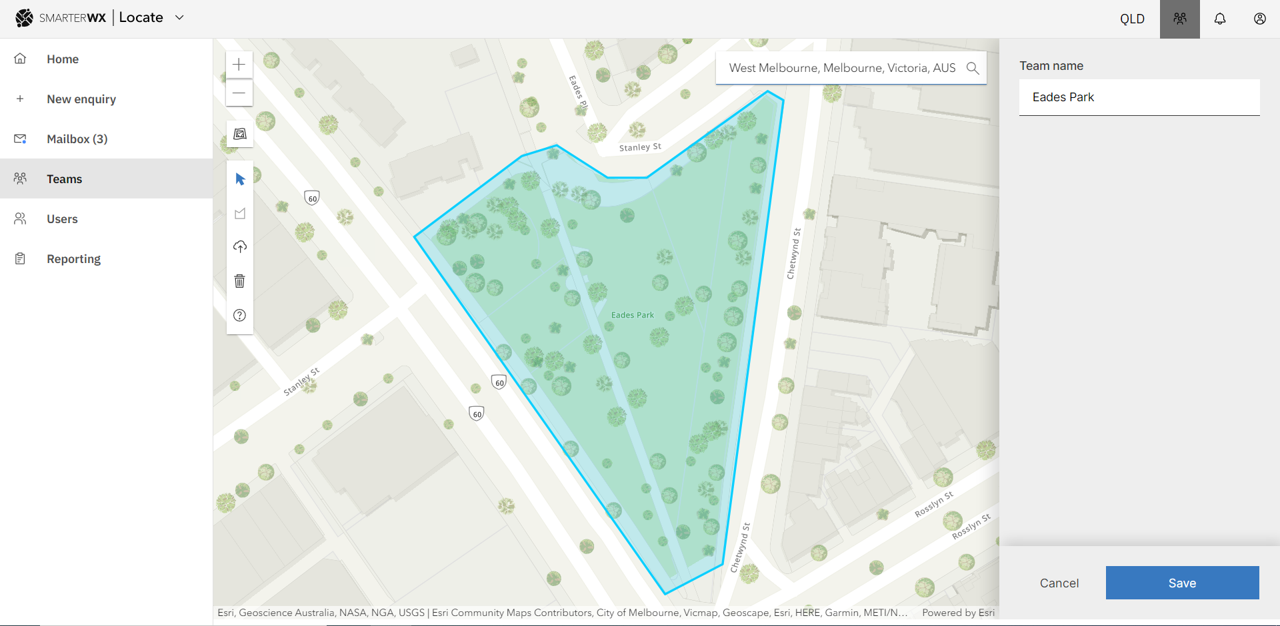
- The Team Information panel is only used if your organisation has enabled the “Create Enquiry” feature. If you are creating enquiries through the 1100.com.au website this information is not used.
- The Team Information sets default values in the create enquiry form when adding new enquiries. Each field is optional. Values added to the team form are used as defaults only and can be overridden by a user when creating an enquiry.
- Click Save to finish creating your team.
Adding and removing team members
Each team – and the enquiries contained within the team – is only visible to users who have been granted access to the team. The person who created the team is the Team Owner and is able to add and remove users for a team.
There are two types of user in SmarterWX Locate: –
- Organisation Users – these are users who belong to your SmarterWX Locate organisation, use single sign-on etc. These users are added by an Organisation Administrator or Manager.
- External Users – these are users who are added to a particular team directly but do not necessarily belong to your organisation. This might be a sub-contractor who you wish to see your Before You Dig enquiries for one team. These users can be added by a Team Owner or Manager.
When adding users you do not need to know if they already exist as an organisation user or not. You can add any users to your team.
To add users to a team, select the Teams feature from the left-hand menu and then click on the team you wish to change. Then follow the steps below: –
- Navigate to the bottom of the page to find the Users section.
- Click on Add Users.
- Add users via one of two methods:
- Search for each existing organisation user you wish to add and select them from the dropdown list to add
- Enter the email address of each user you wish to add. You can add many users from the same form.
- Click on Add Users when you have finished adding the users.
To remove users from a team click on the “X” button to the right of the user list. This remove action can be performed by Organisation Admins and Managers.