
This topic describes how to link your SmarterWX Locate account to 1100.com.au (the Before You Dig website).
This is a required setup if you wish to continue lodging enquiries through 1100.com.au. If you are planning to lodge your enquiries through SmarterWX Locate – or if you only view enquiries created by someone else – you can skip this setup.
There are two steps required to link SmarterWX Locate to 1100.com.au.
- Changing the email address that 1100 responses are sent to so that they are received by SmarterWX Locate on your behalf.
- Entering your 1100 login credentials so that SmarterWX Locate can fetch enquiry information from 1100.com.au.
STEP 1 – Changing your email address in 1100.com.au
Before doing this step you must already have an active login account with 1100.com.au. This account should have been created using your own email address.
In this step we will be logging into your 1100.com.au account and changing the email address that asset owners use to send you the maps and other information relating to your dig.
- Go to https://locate.smarterwx.com.au/settings and locate the field called “1100.com.au Reference Address“. Make a note of the email address. It will probably look something like “your.name@locate.smarterwx.com.au”.
- Login to 1100.com.au
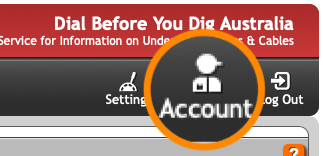
- Click on the “Account” icon in the top-right hand corner of the page.
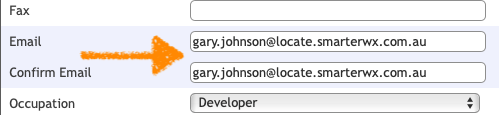
- Enter the email address you noted at (1) above in the Email and Confirm Email boxes. (Note: The 1100.com.au website does not allow you to copy-and-paste these fields. You must type them in by hand).
- Finally hit the “Update” button at the bottom of the account settings panel.
- You now need to wait for a minute. In the background, 1100.com.au is sending a “please verify” email to the new address and SmarterWX Locate is performing this verification. You can tell when the verification is complete by checking the “Linked with 1100.com.au” status in SmarterWX Locate.
- After waiting for a minute refresh the SmarterWX Locate settings page. You should see that it is now confirmed that the account is linked.
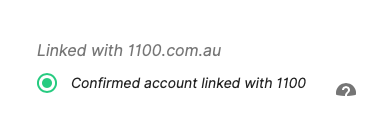
- Congratulations! You have successfully told Before You Dig to send all future emails to SmarterWX Locate on your behalf.
- If the green circle is not filled, try waiting a little longer. If it still doesn’t update. Return to 1100.com.au and make sure that you have entered the correct email address. If the problem persists for longer than 30 minutes, please contact SmarterWX support.
TIP: After this step is complete, any new enquiries you lodge through 1100.com.au will divert to SmarterWX Locate. Be certain this is what you intend before starting. If you are only testing, you might want to create a new 1100 account to separate your testing from your real account.
STEP 2 – Giving SmarterWX Locate your 1100.com.au login credentials
In this step, you will enter the username and password you use for logging in to 1100.com.au. This gives SmarterWX Locate permission to retrieve details of enquiries that you lodge through Before You Dig. This is essential to be able to add your enquiries to the SmarterWX Locate map.
You will need to know the username and password you use for logging in to 1100.com.au. (The same credentials you used when you changed your email address in Step 1.)
- Go to https://locate.smarterwx.com.au/settings and locate the section called “1100.com.au Detail”.

- Enter your username and password.
- Click on the “Save and Verify” button. This will make sure that your details are correct.
- If the details are correct, you will see the message “1100.com.au details saved and valid” at the top of the screen.

- Congratulations! SmarterWX Locate is now able to connect to your 1100.com.au account.
That’s it. You are now setup. Any enquiries you lodge through 1100.com.au will now be collated for you by SmarterWX Locate.